Trim
Drag either handle. The clip keeps its place; only the in and out points move.
keeping 0:06.6 of 0:10.0
Arrow keys nudge a handle a frame at a time. In the editor you can also type the timecode.
Your video stays on your device
Your browser reads, edits and exports the file. Your video is never uploaded, and there's no account or watermark.
Edit your videos online for free — no signup, no software to install. Add a video, trim, crop, split, resize or add music, then download it. No watermark.
No account needed
…or drop a video, image or audio file anywhere on this page.
MP4 · WebM · MOV · PNG · JPG · MP3 · WAV
Your project is saved in this browser, so a refresh won't lose it.
These are the four you'll use most, working right here. Drag them — the ruler below is drawn by the same code the editor's timeline uses.
Drag either handle. The clip keeps its place; only the in and out points move.
keeping 0:06.6 of 0:10.0
Arrow keys nudge a handle a frame at a time. In the editor you can also type the timecode.
Park the playhead and cut. One clip becomes two, each editable on its own.
cut at 0:04.4
Choose a shape, or drag the corner. The export comes out at the cropped size, not letterboxed.
1190×842 from 1920×1080
Zoom in until the ruler counts fractions of a second, then land the cut exactly.
one tick = 2s
Snapping, ripple delete, multi-track editing and undo for every step are in the editor itself.
Most edits are one small job, not a production. Here are four that take about a minute each — every one of them free, in this tab, with no account and no watermark on the way out.
If you only want to trim a 30-second clip, being asked to create an account first is a strange trade. There is no account system here at all — so the list of things to hand over is empty.
Not required
Because there is no account, your project is saved in this browser as you work and offered back to you next time — per device, so export anything you want to keep. How the no-login editor stores your work.
All you need
Every screenshot below is the editor itself, not a mock-up.
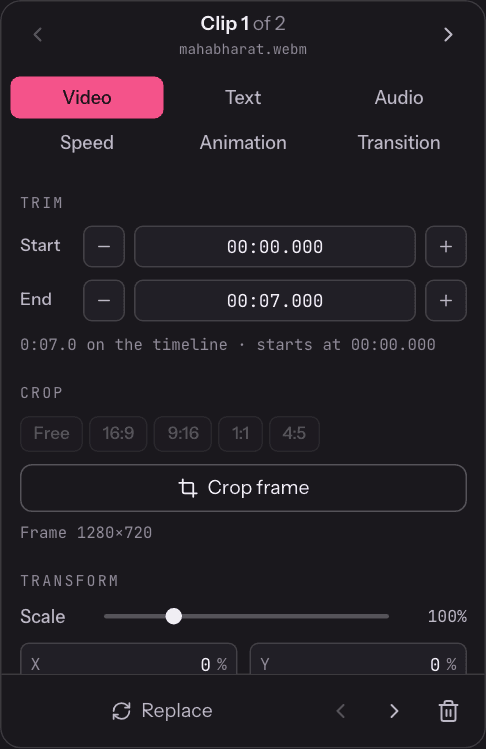
Every clip has a handle at each end. Drag them for a rough cut, or type Start and End as exact timecodes and step a single frame at a time.
To take something out of the middle, split either side of it and delete the piece between — with ripple mode on, the gap closes itself.
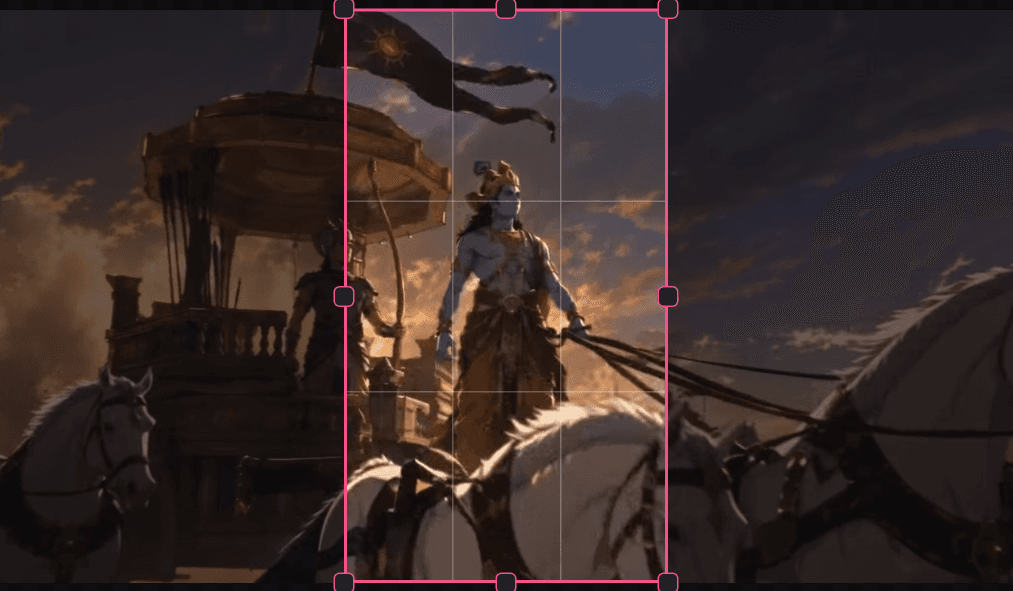
Choose 9:16 for a story, 1:1 for a feed, 4:5 for portrait, 16:9 for widescreen — or drag any shape freehand. Thirds guides come with it.
The export uses the frame you kept rather than padding the original with black bars, and you can still pick the output resolution afterwards.
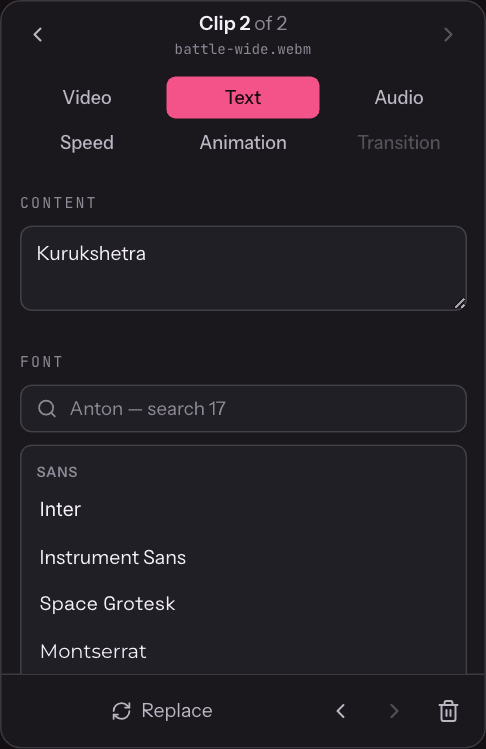
Seventeen typefaces are built in and you can load your own font file. Size, weight, letter spacing, colour, a backdrop, and an entrance or exit.
Text lands on its own track above the video, so moving a clip never drags the caption along with it.
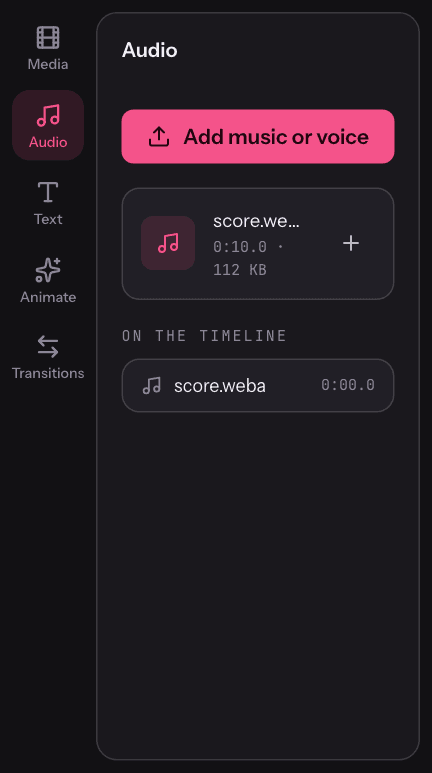
Drop an MP3, WAV or M4A onto the page and it lands on its own audio track with a waveform drawn along it. Set the level and fade the ends.
Volume and mute are per clip, so you can keep the sound from one recording and drop it from another, or silence the original entirely.
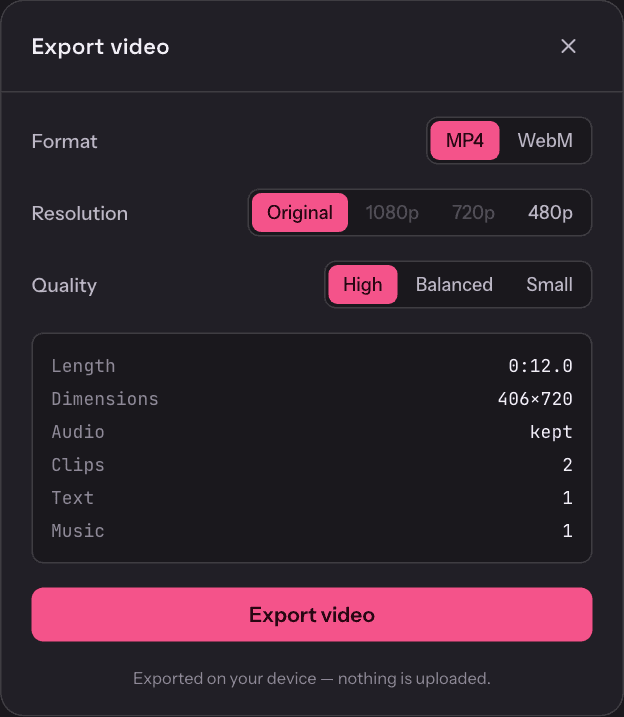
MP4 or WebM, at the original size or 1080p, 720p or 480p, with three quality settings. The panel tells you the length, the output dimensions and what audio is going in before you commit.
Nothing is stamped on the result and there is no length cap — your own browser does the encoding, so there is no queue to wait in.
Rotate sideways footage, join several clips into one file, change the output size, or run a clip at a quarter speed or up to 4×.
Four steps, no download, and nothing to set up first.
Drag a video onto the page, or press Start editing to pick a file. It opens on the timeline in a second or two — there is nothing to upload and no queue.
Trim the ends, split out the parts you don't want, crop or rotate the frame, add text, drop in music, or change the speed.
Play it back in the preview at any point. Scrub the playhead over each cut to check the edit points before committing to an export.
Choose MP4 or WebM and a resolution, export, and the finished file is saved to your device.
Browsers gained a real media pipeline a few years ago — the same decoders they already use to play video, plus an encoder to write the finished file. This editor uses it, which is why there is nothing to install: the capability is already on your device.
No desktop app, no extension, no plug-in. Open the page and the editor is there.
Chrome and Edge have the widest codec support today; Safari and Firefox open many files but can refuse specific codecs.
Encoding runs on your device, so a long 4K export asks real work of it — and there is no queue.
Many browser-based editors upload your video to a server, process it there and hand you a download link. This one has no upload endpoint at all. Decoding, compositing and encoding happen in the tab.
So an unfinished cut of something confidential stays on your machine, and there is no account holding your files after you are done. The only things that cross the network are the page itself and a page-view count — never your footage.
Where each stage runs
4 of 4 localnetwork
GET /
the page
page view
analytics count
no media, ever
The editor has no upload endpoint. Open your browser's network tab and edit a video: the page and a page-view ping are all you'll see, and not a byte of your footage.
Cut the dead air at the start, crop to the part that matters, and send it before the meeting ends.
Reframe a landscape video to vertical, add a caption in a real typeface, and export without a logo stamped on it.
Client footage, medical or legal material, an unreleased product — edits that shouldn't be sitting on someone else's disk.
Yes. Every tool in the editor is free to use, with no paid tier, trial or export limit. Your browser does the encoding, so there is no per-minute server cost to pass on.
Add a video to the editor, make your changes on the timeline — trim, split, crop, rotate, text, music — preview the result and export it. The whole flow happens on one page.
Yes. The editor runs in a modern browser, so there is no desktop application to install. It needs a recent browser with WebCodecs support; current Chrome and Edge work best.
Yes. There is no account system at all — no signup, no email address, no trial. Add your video, make your changes and export.
Yes. Exports carry no watermark. There is no paid tier, so there is nothing a watermark would be advertising.
Drag the handle at either end of the clip on the timeline, or type exact Start and End timecodes in the Trim fields, then export.
Yes. Choose a ratio — 16:9, 9:16, 1:1, 4:5 or free — and drag the box over the part of the shot you want to keep.
Yes. Park the playhead where the cut belongs and press S. The clip becomes two independent clips you can trim, reorder or delete.
Yes. Drop an audio file onto the page and it lands on its own track. Set its level and fades, and it mixes with the video's own sound. There is no built-in music library — you add your own file.
Yes. Add as many clips as you need to one timeline, drag them into order, and export a single video. Transitions are available between clips.
Yes. On Windows, macOS or Linux the editor runs in the browser you already have. It also works on tablets and phones, though a mouse and a larger screen make timeline work easier.
Yes, and there is no upsell path — no watermark to remove, no resolution locked behind a plan, and no account to upgrade.
Yes, and that is the whole design. Your file is read from your device and decoded, edited and encoded by the browser's own media engine. Your video is never uploaded: the only network traffic is the page itself and an anonymous page-view count.
MP4, WebM and MOV for video, PNG, JPG and WebP for images, and MP3, WAV and M4A for audio. Exports are MP4 or WebM. Exactly which codecs open and export depends on your browser.
One page per job, each with the steps for that edit and nothing else.
10 tools · all free
No sign-up wall to get past. Scroll back up, drop a file in, and you're editing.
Start editingCinemaViewcinemaview.in
Pick a cinema, pick a seat, and look at the screen from it in 3D — then compare how the same row feels in IMAX, Dolby Cinema, ScreenX and 4DX.